








【GAS、Google Spreadsheet】Googleカレンダーにスケジュールを登録するためのスクリプトです
968 語
5 分
【GAS、Google Spreadsheet】Googleカレンダーにスケジュールを登録するためのスクリプトです

はじまり

135ml
よし! 1日ずつ予定を打ち込めるスクリプトを作るぜ、俺は! うおおおおお!!!

リサちゃん
決起したねぇ モグモグ
ツールの紹介
月曜から金曜まで一気通貫の予定として入力するとスケジューリングしにくい・・・。日にちごとに予定をいじりたい・・・。
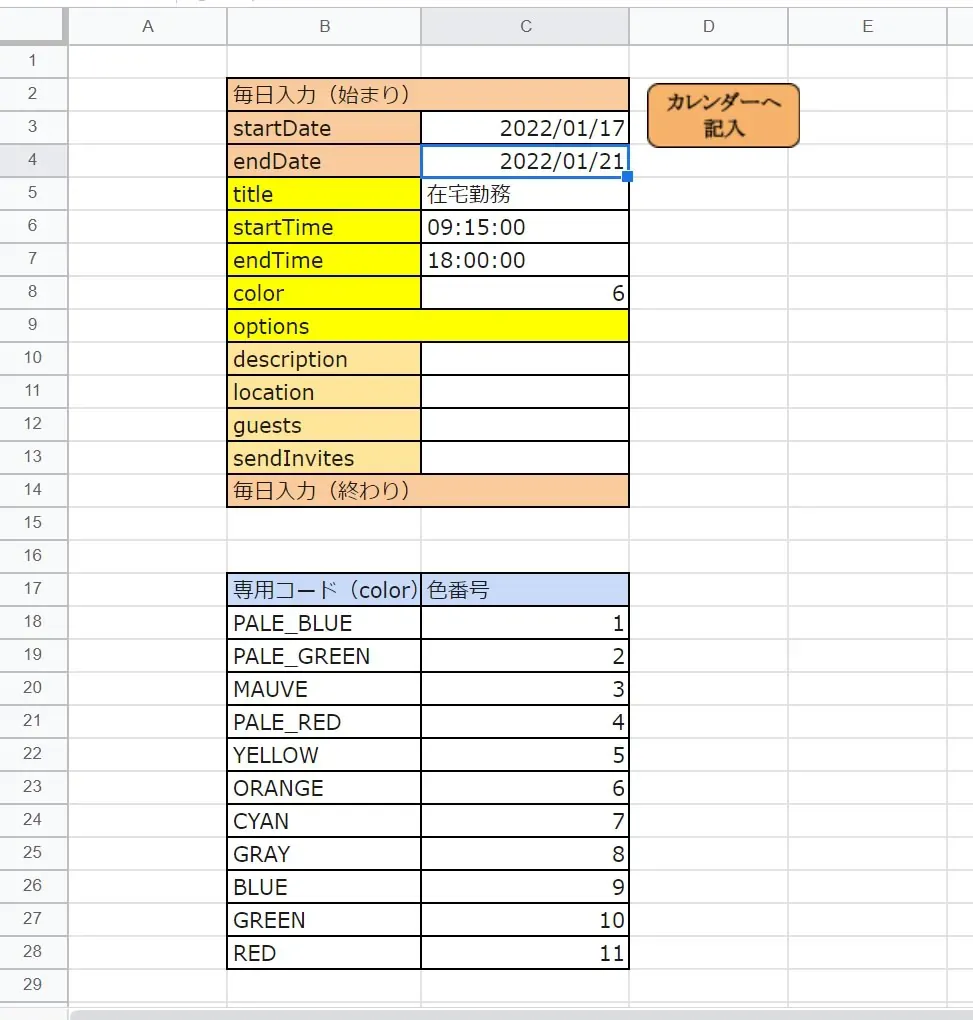
ということで、今回作ったツールはこんな感じになっています。
- startDateに連続した予定期間の開始日を入力して、endDateに終了日を入れます。
- それと予定の「title」と「startTime(開始時刻)」と「endTime(終了時刻)」も入力します。
- 「color」は、下の「専用コード(color)」の方から予定の色にしたい色を決めて、「色番号」の数字の中から入力します。
「description」「location」「guests」「sendInvites」は任意項目です。
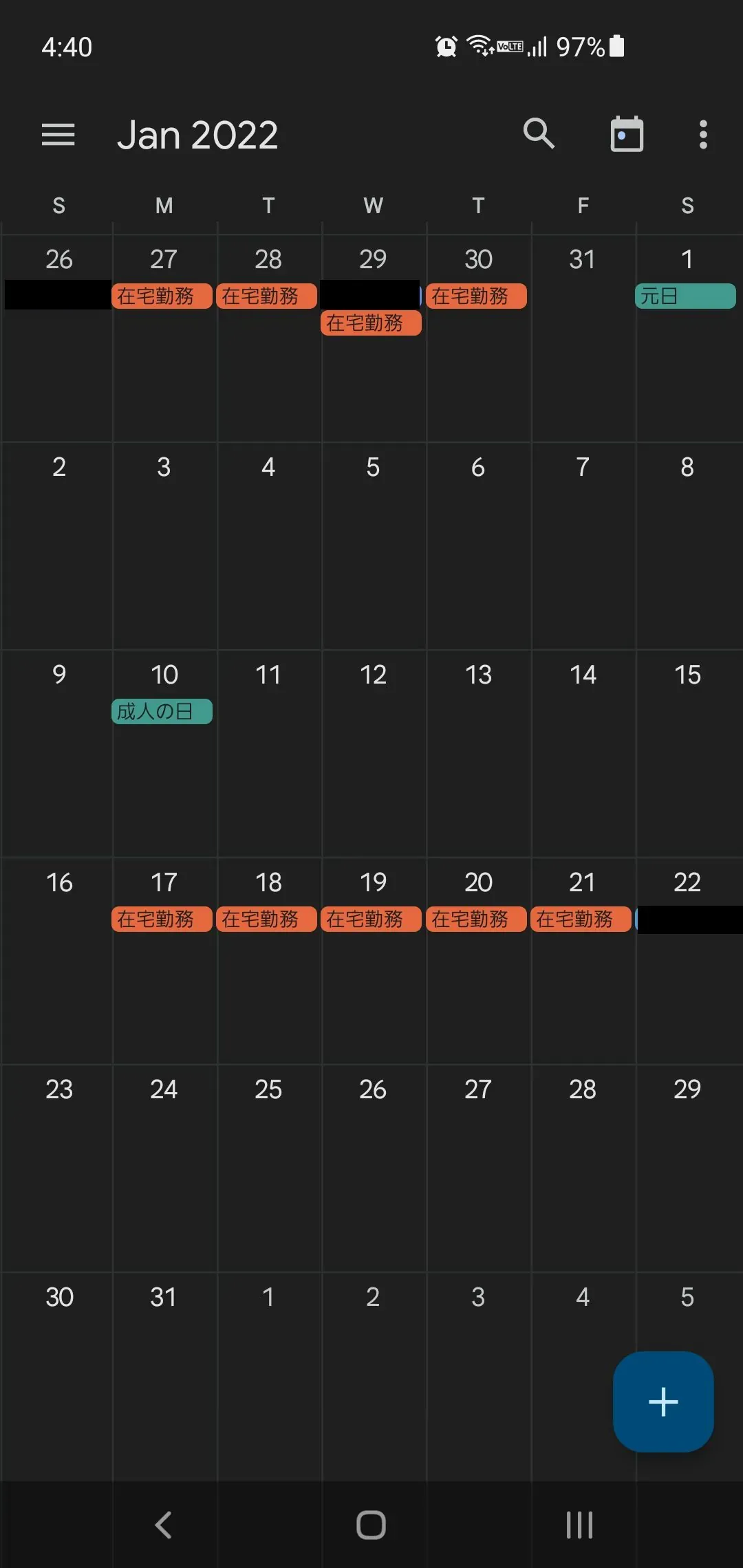
実際にツールを実行すると、こうなる。
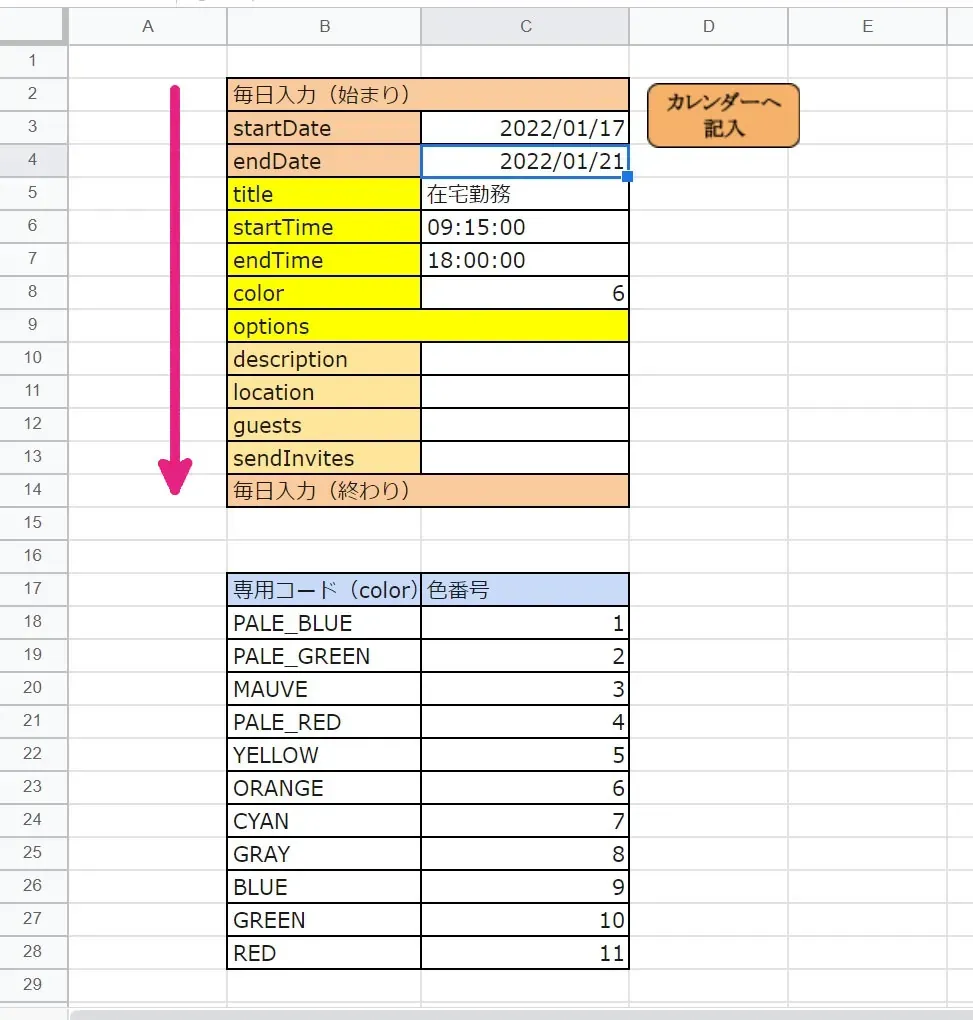
シートの造り
シートの作りとしては、基本的にシートの上の方から、値をスクリプト内の変数に設定していっています。スクリプトの流れがそんな感じになっています。「毎日入力(始まり)」から「毎日入力(終わり)」の間の値を利用しています。
スクリプトの紹介
このツールに使用しているGoogle Apps Scriptのソースになります。
// カレンダーに予定を追加する。function createEvents() { // カレンダーのインスタンスを設定する。 const calendar = CalendarApp.getDefaultCalendar();
// スプレッドシートのインスタンスを設定する。 const ss = SpreadsheetApp.getActiveSpreadsheet(); const sheet = ss.getSheetByName('カレンダー入力'); const range = sheet.getRange('C3');
// 諸々の変数を設定する。 const column_of_key = 2; // キーの列:数値 let row = 1; // 走査の開始行:数値 let key; // キー:数値 let array_to_input = []; // 入力用:配列 let startDate; // 開始日:文字列 let endDate; // 終了日:文字列 let color; // 色番号:数値 let a_day; // とある日にち:文字列 let num_of_date; // 日数:数値 let startTime; // 開始時間:文字列 let endTime; // 終了時間:文字列 let options = {}; // 入力のオプション枠:辞書 let event; // イベント:Event let day_of_EOM = {'01': 31, '02': 28, '03': 31, '04': 30, '05': 31, '06': 30, '07': 31, '08': 31, '09': 30, '10': 31, '11': 30, '12': 31} // 月末の日付:辞書
// カレンダー入力データの起点を決定。 while(sheet.getRange(row,column_of_key).getValue() != '毎日入力(始まり)'){ row++; }
// 「options」行まで、入力値を読み込む。 while(sheet.getRange(row,column_of_key).getValue() != 'options'){ key = sheet.getRange(row,column_of_key).getValue(); if(key == 'startDate'){ startDate = Utilities.formatDate(sheet.getRange(row,column_of_key + 1).getValue(), "Asia/Tokyo", "yyyy/MM/dd"); } if(key === 'endDate'){ endDate = Utilities.formatDate(sheet.getRange(row,column_of_key + 1).getValue(), "Asia/Tokyo", "yyyy/MM/dd"); } if(key === 'title'){ array_to_input[0] = sheet.getRange(row,column_of_key + 1).getValue(); } if(key === 'startTime'){ startTime = sheet.getRange(row,column_of_key + 1).getValue(); } if(key === 'endTime'){ endTime = sheet.getRange(row,column_of_key + 1).getValue(); } if(key === 'color'){ color = Number(sheet.getRange(row,column_of_key + 1).getValue()); } row++; }
// 日数を設定する。(開始月と終了月が異なるかどうかで場合分け。閏年には非対応。) if (endDate.slice(5, 7) === startDate.slice(5, 7)) { num_of_date = Number(endDate.slice(-2)) - Number(startDate.slice(-2)) + 1; } else { num_of_date = Number(endDate.slice(-2)) + Number(day_of_EOM[startDate.slice(5, 7)]) - Number(startDate.slice(-2)) + 1; }
// 繰り返し方を設定する。 let recurrence = CalendarApp.newRecurrence().addDailyRule().times(Number(num_of_date));
// 「option」の行をスキップ。 row++;
// 「options」内に入力する値を読み込む。 while(sheet.getRange(row,column_of_key).getValue() != '毎日入力(終わり)'){ key = sheet.getRange(row,column_of_key).getValue(); options[String(key)] = sheet.getRange(row,column_of_key + 1).getValue(); row++; }
// 毎日入力 array_to_input[1] = new Date(startDate + " " + startTime); array_to_input[2] = new Date(startDate + " " + endTime); // Browser.msgBox('テスト'); event = calendar.createEventSeries(array_to_input[0], array_to_input[1], array_to_input[2], recurrence, options); event.setColor(color);
}繰り返す日数を計算します。11/30や12/31などで日数にブレが生じるのでday_of_EOMを処理に噛ませます。
// 日数を設定する。(開始月と終了月が異なるかどうかで場合分け。閏年には非対応。) if (endDate.slice(5, 7) === startDate.slice(5, 7)) { num_of_date = Number(endDate.slice(-2)) - Number(startDate.slice(-2)) + 1; } else { num_of_date = Number(endDate.slice(-2)) + Number(day_of_EOM[startDate.slice(5, 7)]) - Number(startDate.slice(-2)) + 1; }ここで繰り返し入力の方法を設定します。
// 繰り返し方を設定する。 let recurrence = CalendarApp.newRecurrence().addDailyRule().times(Number(num_of_date));この部分で、実際にカレンダーに入力します。calendar.createEventSeries()で連続入力します。
// 毎日入力 array_to_input[1] = new Date(startDate + " " + startTime); array_to_input[2] = new Date(startDate + " " + endTime); // Browser.msgBox('テスト'); event = calendar.createEventSeries(array_to_input[0], array_to_input[1], array_to_input[2], recurrence, options); event.setColor(color);おしまい
135ml
よし、これで入力した予定を1日ずついじれるようになったぜい・・・ モグモグ

リサちゃん
ボンカレーおいしいねえ・・・ モグモグ
以上になります!
記事を共有
この記事が役に立ったなら、ぜひ他の人と共有してください!
【GAS、Google Spreadsheet】Googleカレンダーにスケジュールを登録するためのスクリプトです
https://endorphinbath.com/posts/gas-scheduling-googlecalendar/ 関連記事 スマート
1
【GAS】Googleカレンダーに曜日を指定してスケジュールを登録するスプレッドシートの構築
Code Google Apps Scriptを使い、スプレッドシートからGoogleカレンダーに曜日指定でスケジュールを追加するシステムを作りました。繰り返し入力する版と個別に入力する版があります。
2
【GAS、Google Spreadsheet】Googleドキュメントで日記を付けるために毎日Docファイルを作ってくれるスクリプトです
Code GoogleDriveにあるファイルを毎日決まった時間にコピーしてくれるスクリプトを書きました。日記をつける場合に毎回ファイルをコピーしてレイアウトを変えて・・・といった作業を効率化してしまいましょう!
3
【GAS、Google Spreadsheet】Googleドライブのフォルダに有るファイルを一覧で取得するスクリプトです
Code GoogleDriveの指定のフォルダにあるファイルを一覧で取得します。Googleドライブを整理したい時に役立つツールになるかと思います。
4
【GAS、Google Spreadsheet】Googleドライブのルートフォルダに有るフォルダを一覧で取得するスクリプトです
Code GoogleDriveのルートフォルダにあるフォルダを一覧で取得します。Googleドライブを整理したい時に役立つツールになるかと思います。
5
【GAS、Google Spreadsheet】TwitterのBotを作成するために認証を行う。
Code Googleスプレッドシートを利用したGASから実行するTwitterのBotを作りました。今回は、そのTwitterに投稿するための認証周りの設定に関する紹介記事になります。
ランダム記事 ランダム
私のブログへようこそ!これはサンプルのお知らせです。
音楽
再生中なし
0:00 0:00
287
8
93
486,174
0 日
0 日前